LTE Modules for ODYSSEY
This wiki will walk you through how to use the LTE module on ODYSSEY-X86 on both Windows and Linux OS. In this example, the LTE module is Quectel EM06-E LTE Cat 6 M.2 Module which is in the M.2 form factor.
On both OS, we will demonstrate how to use the Hotspot feature to enable Wi-Fi availability to convert 4G LTE to Wi-Fi signals making it ODYSSEY-X86 a simple 4G Wi-Fi Router with ease!
Hardware Connection
- Connect the LTE module to the M.2 Connector of ODYSSEY-X86:
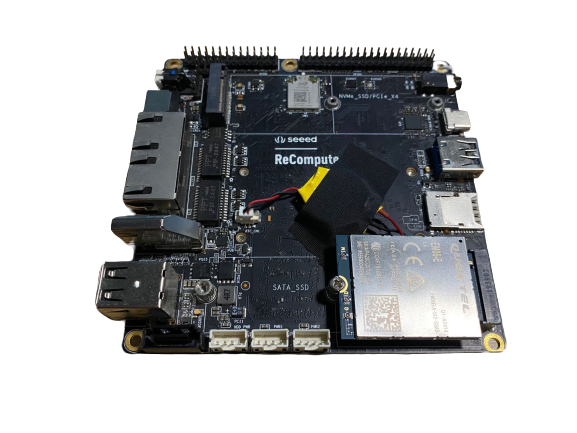
Connect the 4G SIM card to the slot.
Connect the Antennas to the LTE module.
Configurations
The Quectel EM06-E LTE Cat 6 M.2 Module has USB drivers for Windows 7/8/8.1/10, Linux and Android, DFOTA, etc. This makes it very convenient to get started, and without the need of installing drivers.
Windows
Once connected the LTE module and booted Windows. It should automatically install the USB drivers and ready to use:
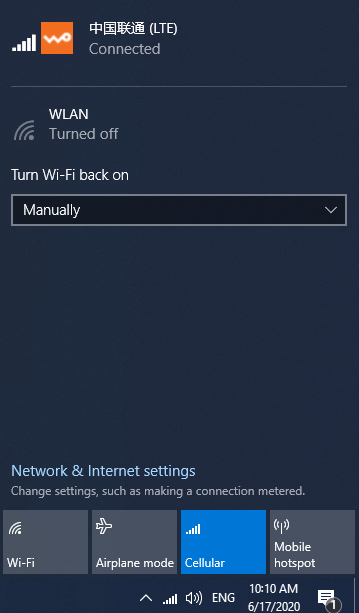
Wi-Fi Hotspot under Windows
Once it's connected to the Internet with the LTE module, you can use the Hotspot feature from Windows to create a Wi-Fi:
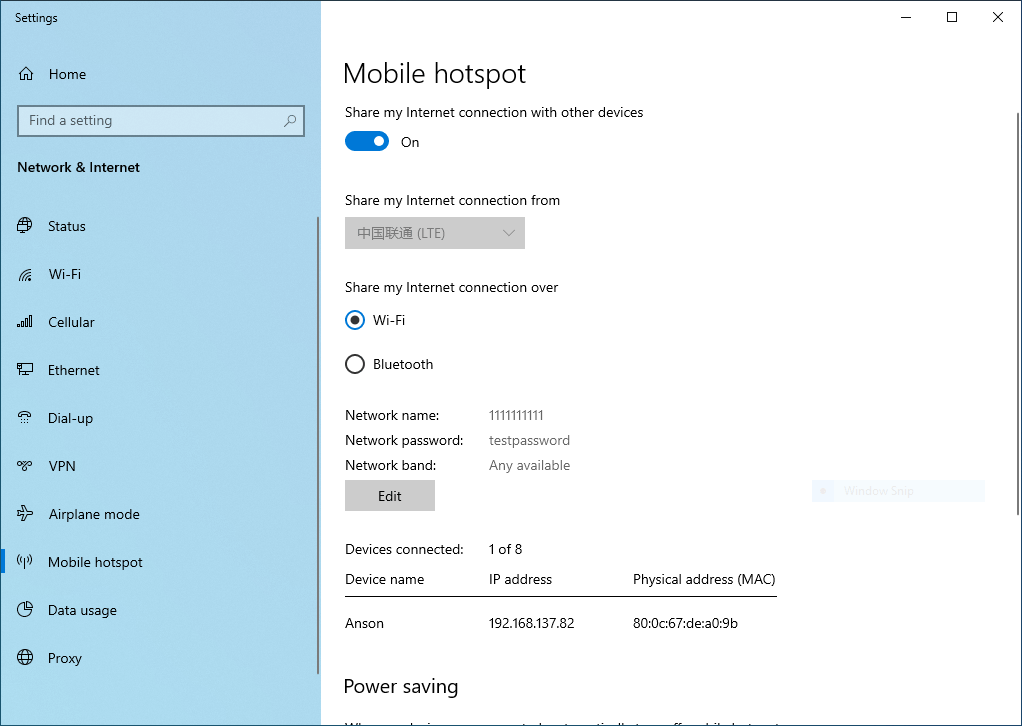
Make sure that the Intel Network card also has antennas connected on it.
Linux
For Linux, it is also very simple. Run the broadband configurations:
Ubuntu 18.04 is used for reference.
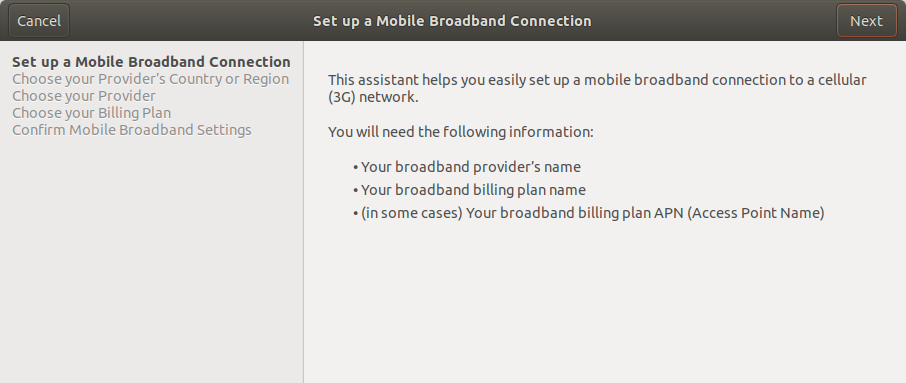
Choose the Country Region and select your network provider:
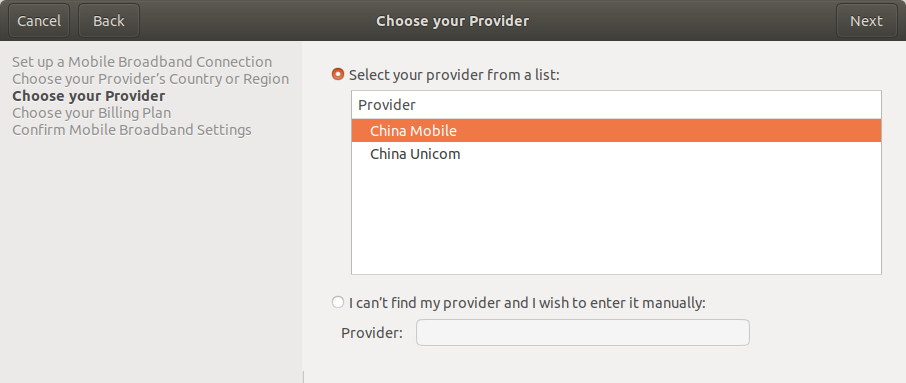
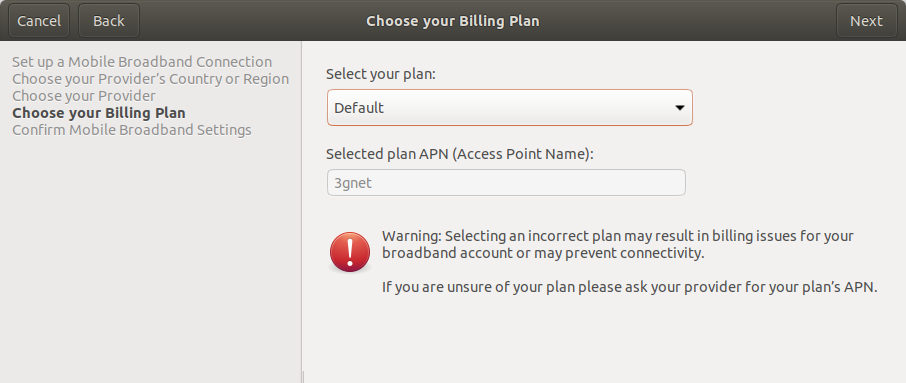
Choose your plan (Default):
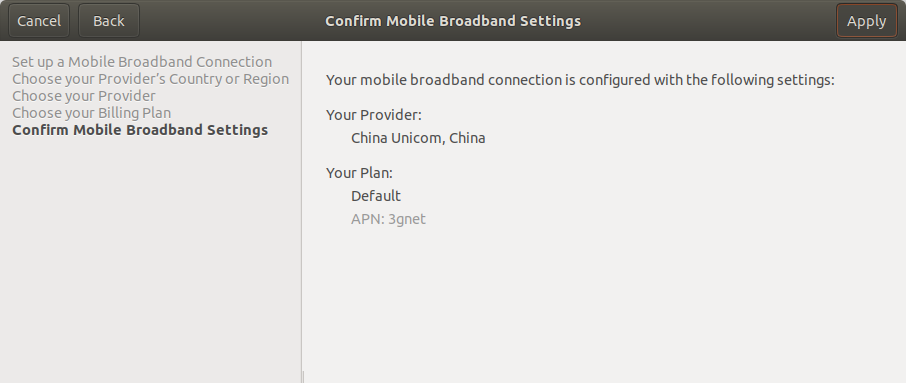
Confirm details and click apply:
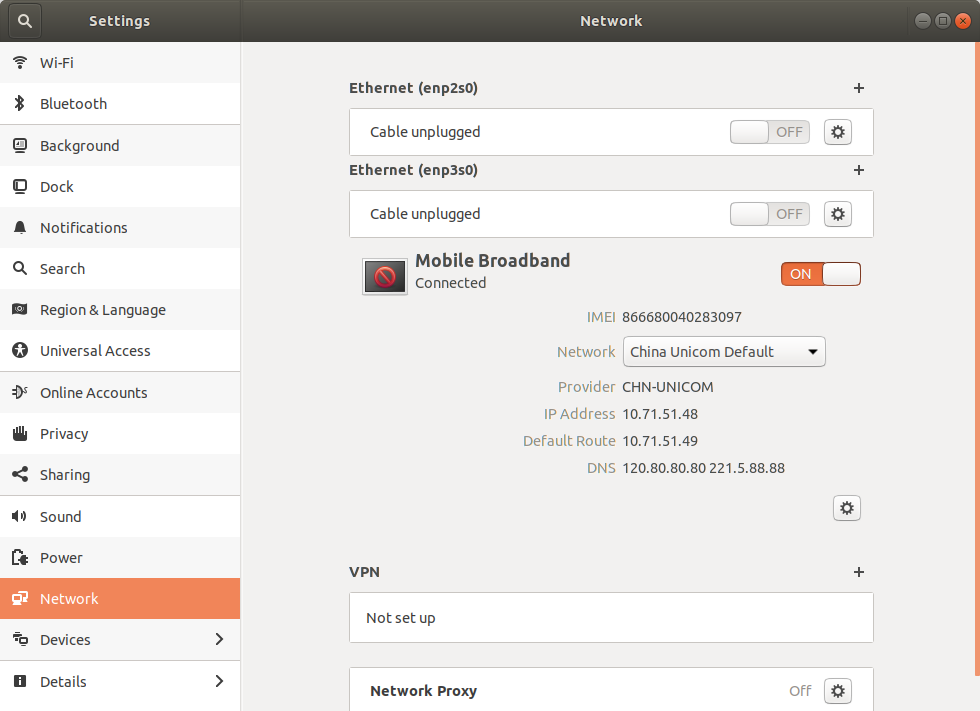
Now, the LTE module is all done and can use to browse Internet!
Wi-Fi Hotspot under Linux
For Linux, you can also create Wi-Fi Hotspot using the 4G network. This following is ran under ubuntu.
- Open Network settings in ubuntu, run the following command in terminal:
nm-connection-editor
The following window will appear:
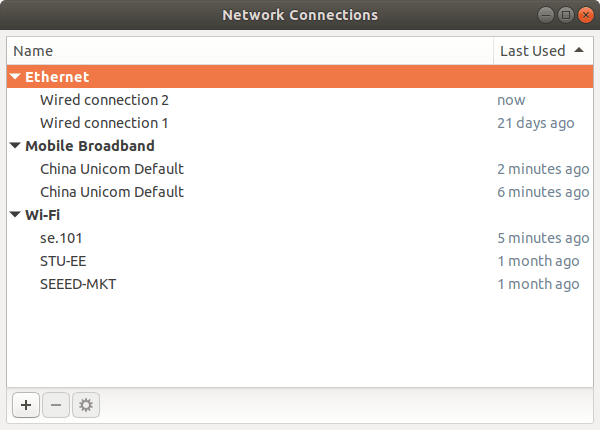
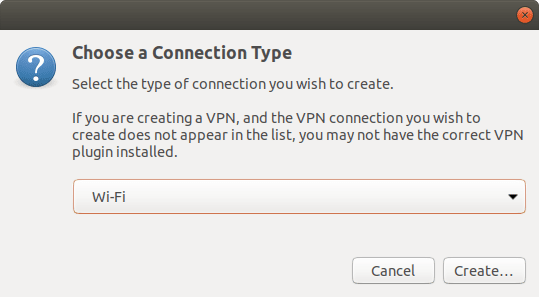
- Select
Wi-Fias connection type:
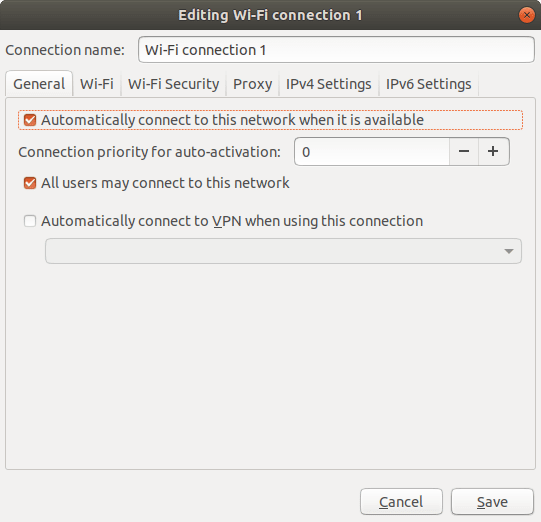
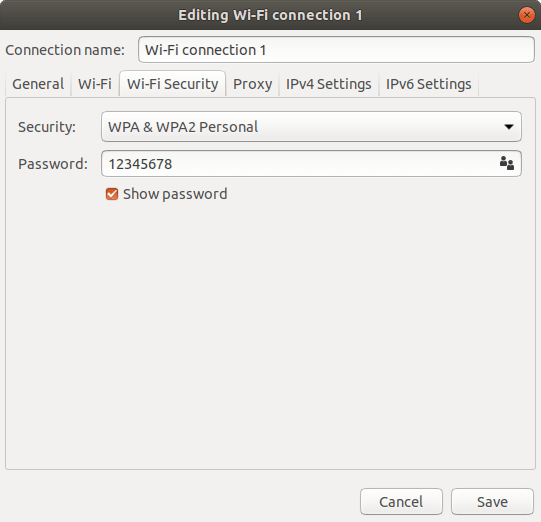
- Configure Wi-Fi settings as follow, make sure that mode is
Hotspot:
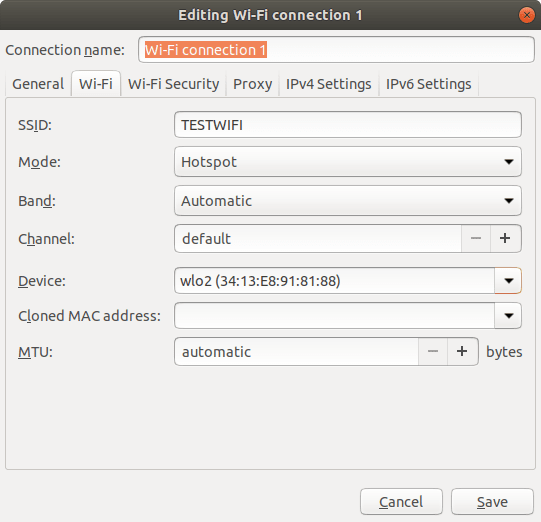
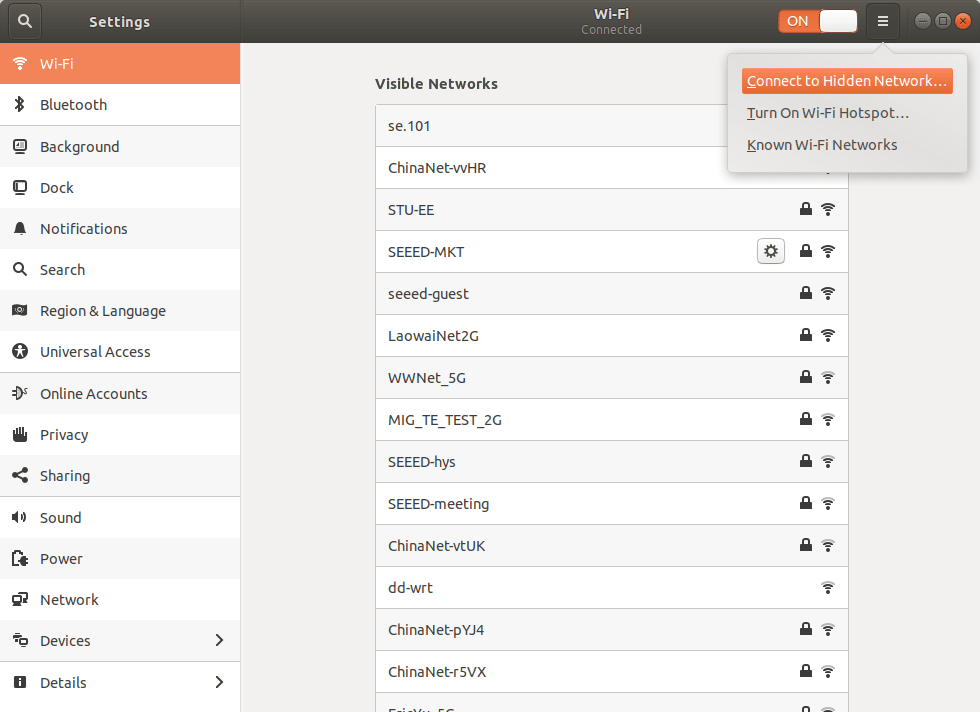
- For the Wi-Fi to be identified by other device, you must connect the Wi-Fi by itself. Under Wi-Fi, select
Connect To Hidden Network. Choose the network that we just created, and connect.
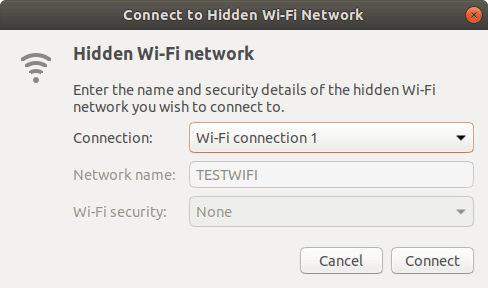
- Now, the Wi-Fi is available for connections!
Reference
Tech Support
Please submit any technical issue into our forum